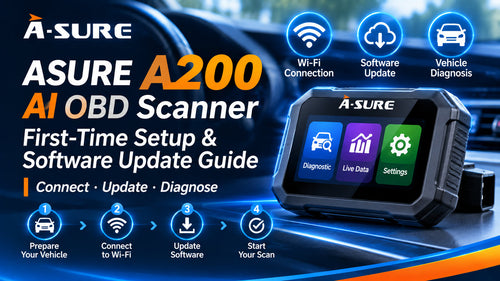
ASURE A200 AI OBD Scanner: First-Time Setup and Software Update Guide
- an November 23, 2026
- Kategorien: Car Stereo
INTRODUCING ASURE A200
ASURE A200 AI OBD Scanner: First-Time Setup and Software Update Guide
Get started with your A200. Learn how to connect to Wi-Fi, update the software and diagnostic database, and prepare for your first scan.

Meet the ASURE A200, an OBD diagnostic product designed to help users access vehicle diagnostic information through a connected diagnostic experience.
Before performing your first scan, we recommend connecting the device to Wi-Fi and installing the available software and diagnostic database updates. This helps ensure that your device has the latest available resources for its supported functions.
1. Prepare Your A200 for First Use
Before starting, prepare the following:
- Your ASURE A200 device.
- A compatible vehicle with an accessible OBD-II diagnostic port.
- An available Wi-Fi network.
- A compatible smartphone for functions that require smartphone connectivity.
Make sure you are following the instructions supplied with your specific device.
2. Connect the A200 to Wi-Fi
For the best first-use experience, connect your A200 to an available Wi-Fi network.
- Power on your A200 according to the product instructions.
- Open the device's Wi-Fi settings.
- Select an available Wi-Fi network.
- Enter the correct network password.
- Confirm that the device has successfully connected.
A stable internet connection is important for downloading available updates and using online-dependent features.
3. Update the Software and Diagnostic Database
Before your first scan, check for available software and diagnostic database updates.
- Open the update section on your A200.
- Check whether software or diagnostic database updates are available.
- Download the available updates over Wi-Fi.
- Allow the update process to finish.
- Restart the device if the system requests it.
4. Connect the A200 to Your Vehicle
After completing the available updates, locate your vehicle's OBD-II diagnostic port and connect the device according to the supplied instructions.
The diagnostic port is commonly located underneath the dashboard near the driver's area, although its exact position varies by vehicle.
Make sure the connector is fully seated and follow the device's instructions for starting a diagnostic session.
5. Start Your First Diagnostic Scan
Once the device is connected, follow the on-screen prompts to begin the available diagnostic functions.
The information and functions available depend on your vehicle, its supported diagnostic systems, and the A200 software version.
If the device cannot communicate with your vehicle, check the connector, vehicle ignition requirements, and the instructions for your specific vehicle before trying again.
6. Understanding AI Features and Internet Access
Some A200 AI-related insights require an internet connection and a compatible smartphone.
If an online-dependent feature is unavailable, first check that your device has a working internet connection and that your smartphone meets the applicable compatibility requirements.
AI-generated information should be treated as assistance for understanding vehicle information, not as a replacement for professional mechanical inspection or repair decisions.
7. Common First-Time Setup Questions
Why can't my A200 connect to Wi-Fi?
Check that the Wi-Fi password is correct, the network is available, and the device is within range of the router.
Why is the update taking a long time?
Update time may depend on network speed and the size of the available downloads. Use a stable network and allow the process to complete.
Why can't my A200 communicate with my vehicle?
Check the OBD-II connector, vehicle ignition requirements, and vehicle compatibility. If the problem continues, contact ASURE with your vehicle details and a description of the issue.
8. Register Your ASURE OBD Product
After purchasing your ASURE OBD product, complete product registration to submit your purchase information for verification.
Eligible registrations may receive an additional six-month warranty after approval, an exclusive 10% discount code, and an opportunity to be selected for free early product trials.
The additional warranty and promotional benefits are subject to registration review and applicable eligibility requirements.
Get Started with ASURE A200
Explore the A200 and register your eligible ASURE OBD product.
Register Your OBD ProductFor product assistance, visit the ASURE Help Center.
Über den Autor